Use Livescraper inside Claude
What you'll need
The Livescraper connector lets Claude create scraping tasks, expand a plain-language prompt into queries, check status, and pull results - all in the conversation, scoped to your account.
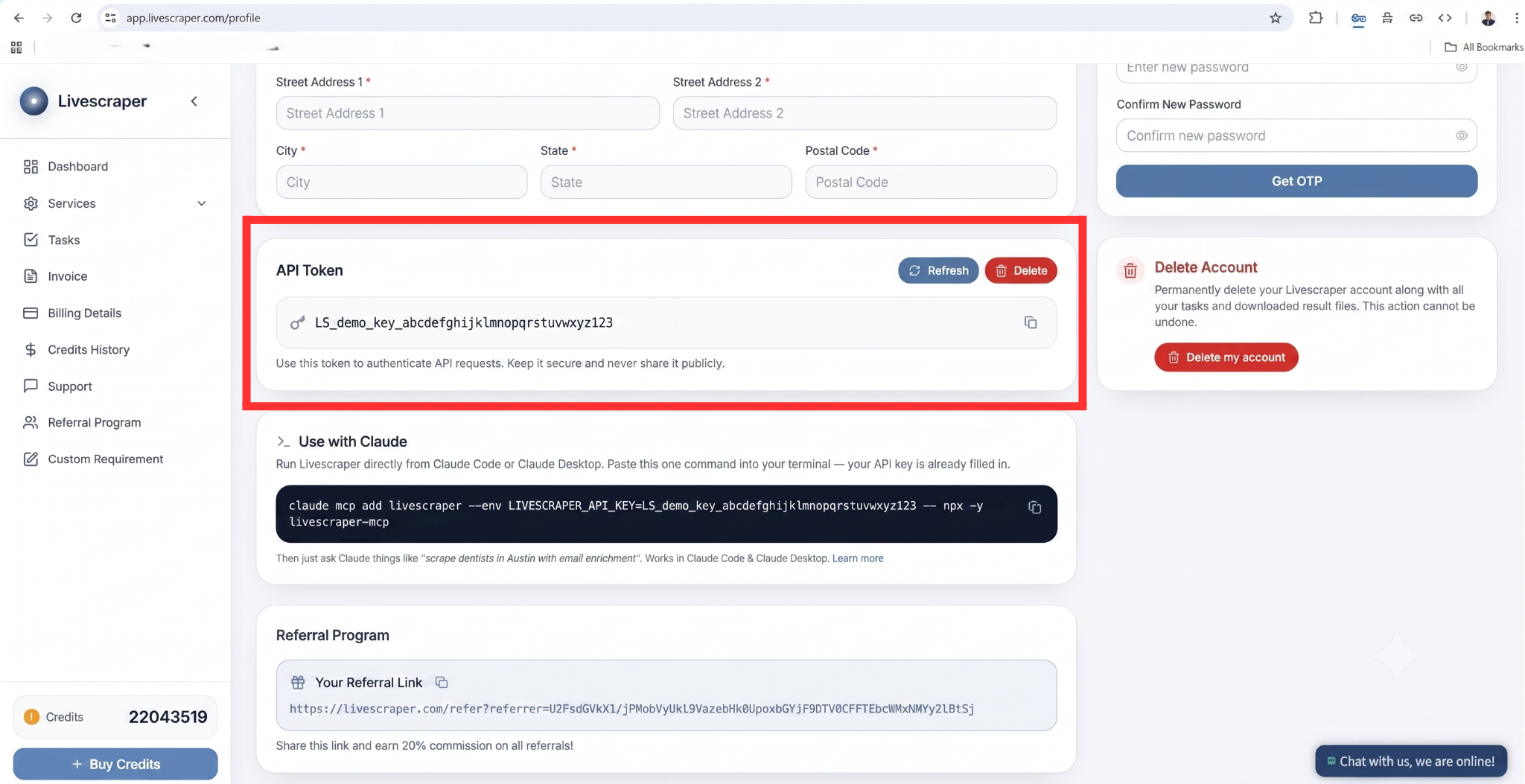
1. Get your API key
Sign in to your dashboard, open Profile Settings, and copy your API Key from the “Use with Claude” section.
2. Connect in Claude Desktop
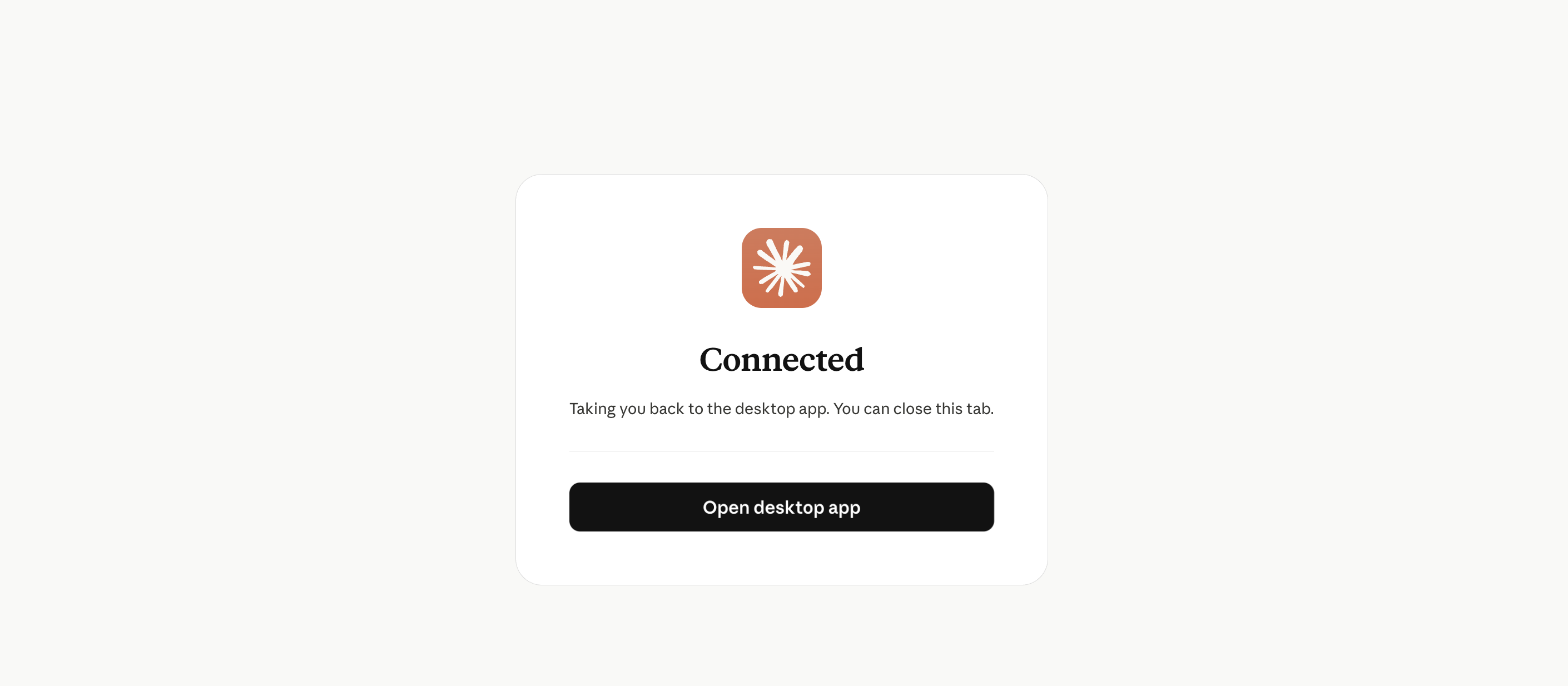
The Desktop app speaks to remote connectors natively over OAuth - no command line needed.
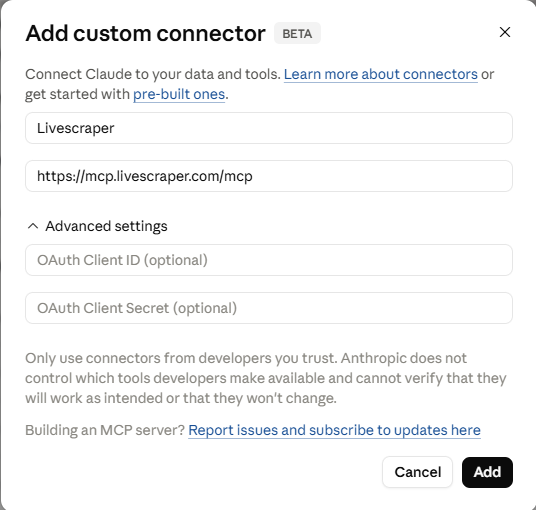
LivescraperURL: paste this exactly:
https://mcp.livescraper.com/mcp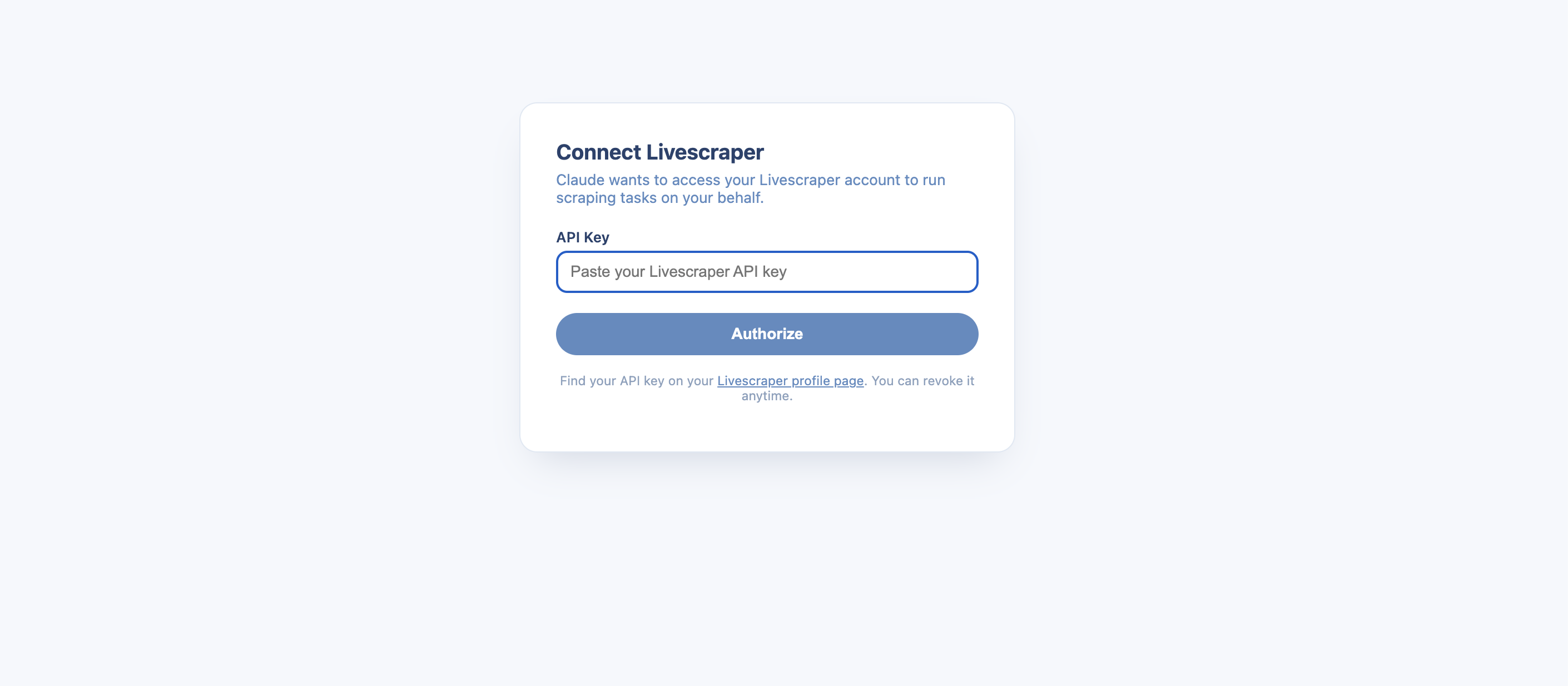
3. Connect in Claude Code (CLI)
Add the remote connector with one command. Use -s user to make it available in every project:
claude mcp add --transport http -s user livescraper https://mcp.livescraper.com/mcpThen, inside Claude Code, run:
/mcp/mcp now shows it connected.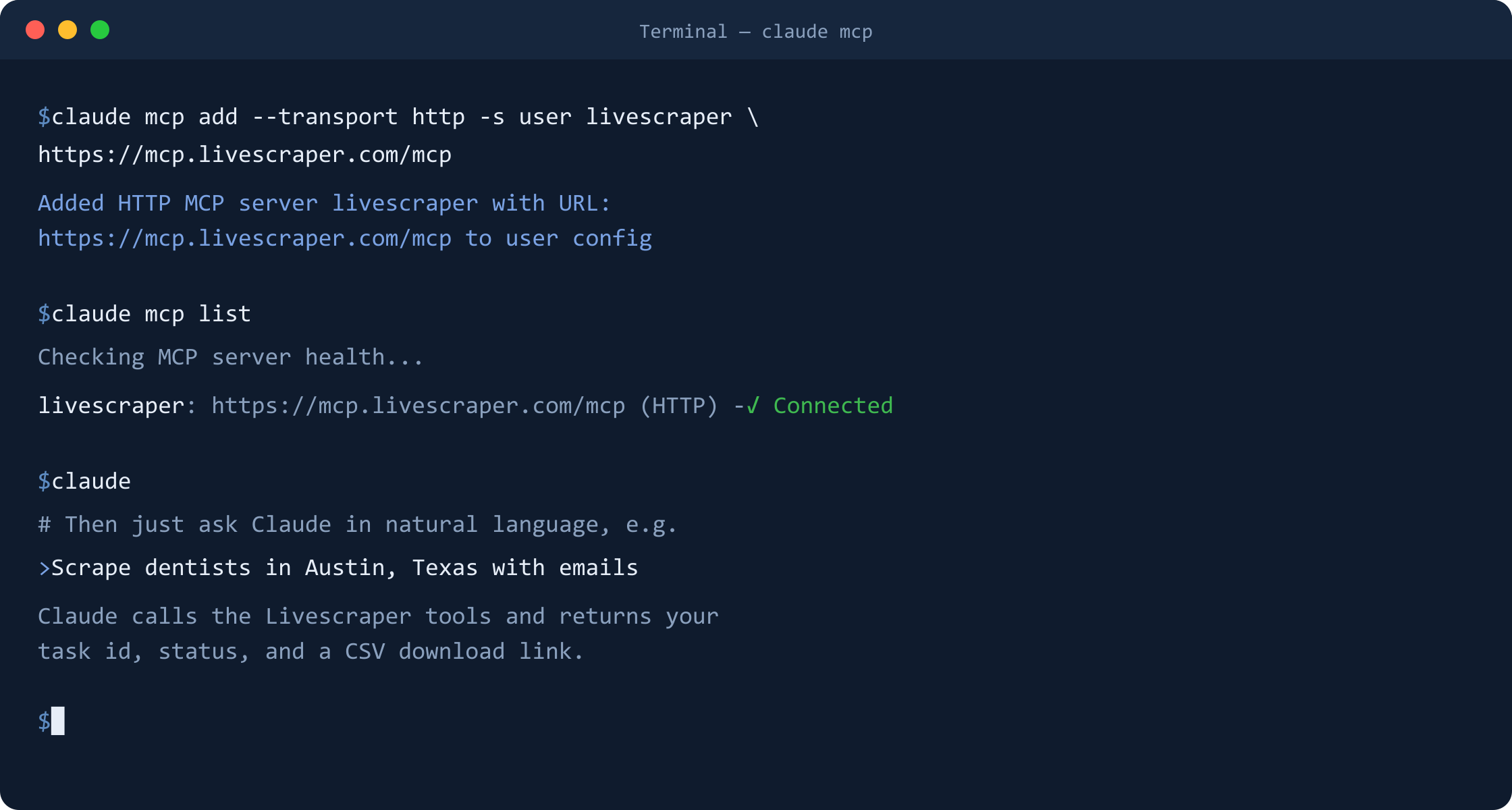
If the claude command isn't found
Add the connector to your config file (~/.claude.json) instead, then restart Claude Code:
{ "mcpServers": { "livescraper": { "type": "http", "url": "https://mcp.livescraper.com/mcp" } } }Available tools
Once connected, Claude can use:
Try it
Just ask, in plain language:
Troubleshooting
The browser didn't open (Desktop)
Fully quit Claude Desktop from the system tray (closing the window isn't enough) and reopen, then click Connect again.
“It's not in the connector directory”
You don't need the directory - adding the connector by URL (above) is the supported way to use it today. The directory is only for one-click discovery.
Re-authenticate
If tools stop responding, open the connector and click Connect/Authenticate again to refresh the session.
Still stuck? Email contact@livescraper.com and we'll help.